iTunes 4.9 Released
iTunes 4.9 is out, I’ve been checking out the podcasting features and it looks great. I thought I’d post some screenshots – click the images to see full-size versions.
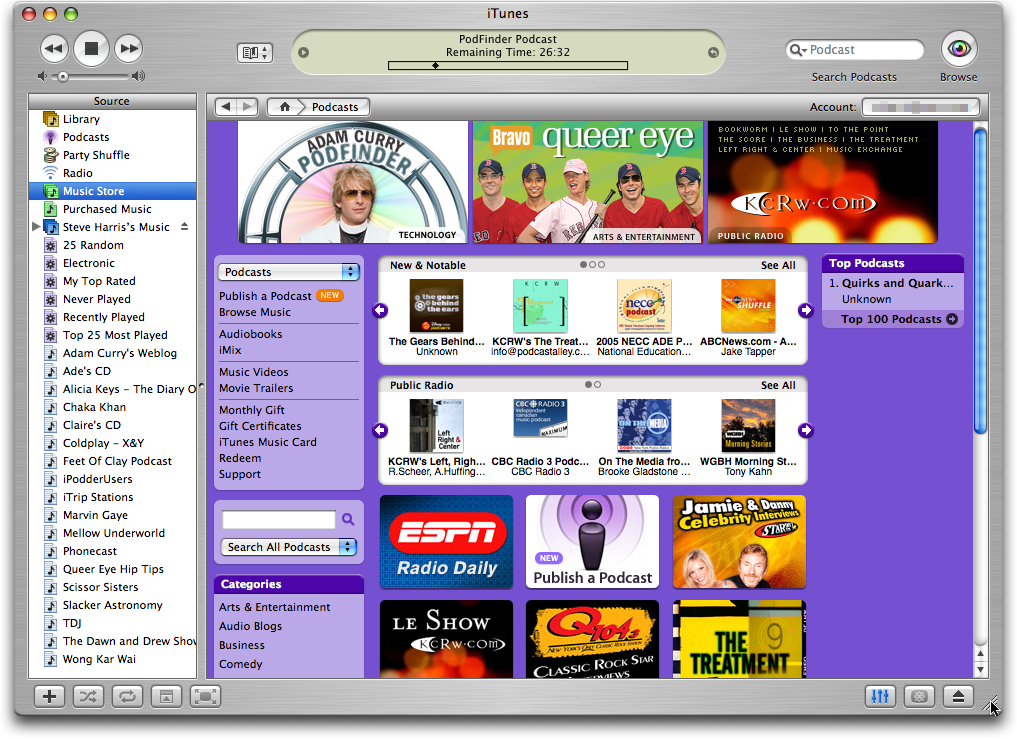
It all starts at the iTunes Music Store. There’s a new Podcasts genre which works much like the rest of iTMS except everything is currently free.
The new Podcast entry in the source list holds all your subscribed podcasts. The small window on top is what you see when you click on the Info button to the right of the podcast or show:
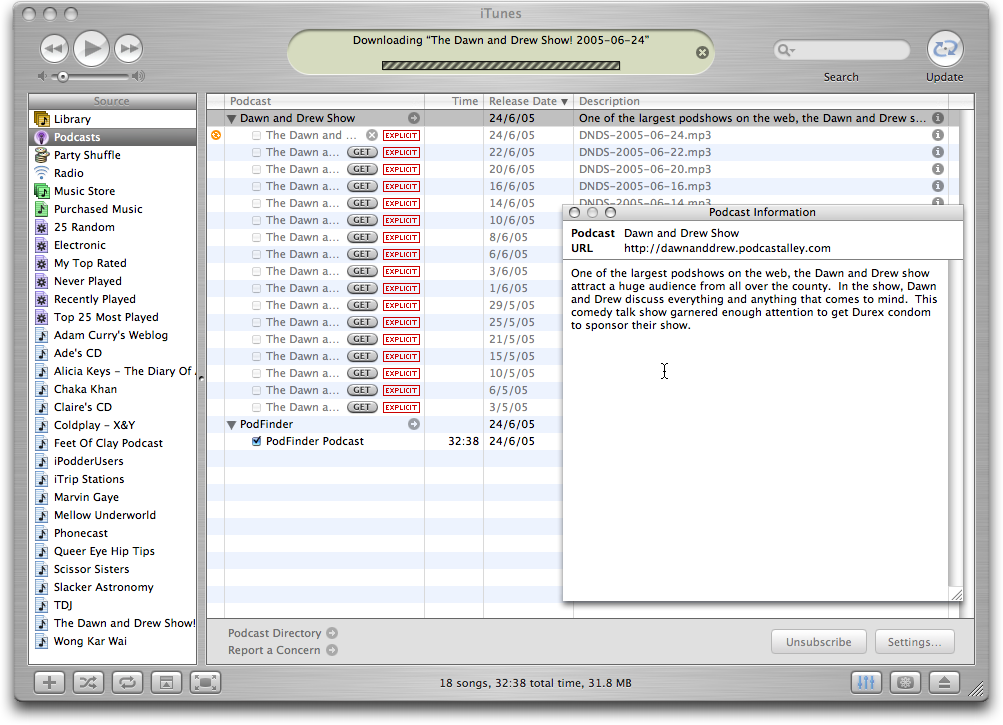
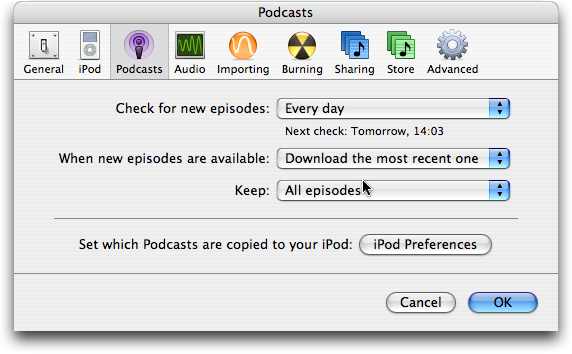
The bottom right has buttons to unsubscribe and a settings button which takes you to iTunes new Podcasts preferences. Shown here:
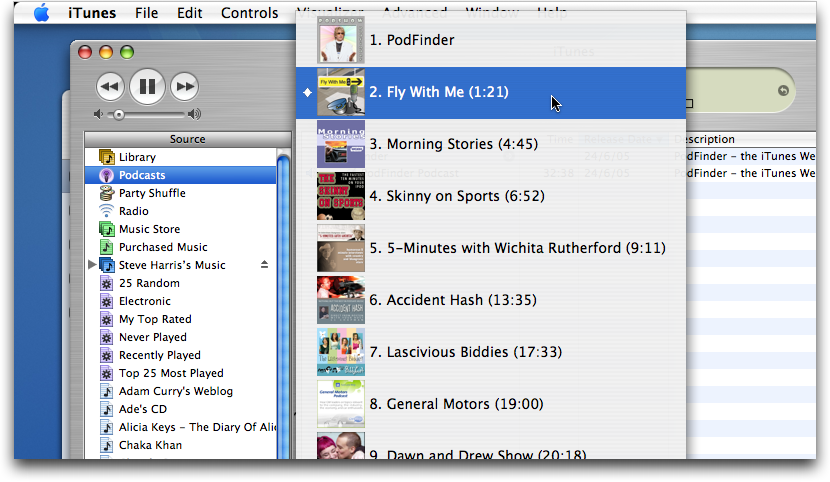
Finally when playing a podcast, an AAC audio file can be set up to have chapters using a new application, currently in beta, called ChapterTool – at present this is a command line tool, but (totally unsubstantiated prediction alert!) probably a sign of things to come in something like, oooh, GarageBand. Anyway, when a podcast has chapters you can navigate them using a little chapter button next to the audio display:
Finally, I mentioned in a previous post that Feeder would support the new “pod” namespace extension that Apple would release with iTunes 4.9. It turns out this is called the “itunes” namespace and has a ton of stuff in it. The information for this is available in the iTMS.
Feeder will be supporting these extra tags in Feeder 1.2, which should be out, well, as soon as it’s ready. I’ve yet to do a detailed design and estimate and I’m hoping to put some other stuff in that release too, so expect it in a month or two.
September 21st, 2005 at 10:18 pm
[…] I admit this post and seeing my own redesign of Feeder’s iTunes preview made it so I had to do this UI update now and not save it for a later version. I’ve been planning it for months but it kept getting put on the backburner as time got squashed and things happened. Feeder’s redesign is not just about being more pleasing on the eye but removing the margins makes more room for the actual content of the window and paves the way for the inclusion of some new features in the near future. […]
June 28th, 2006 at 9:42 pm
[…] Podcasting in iTunes is one year old today. How the last year has flown! Feeder has been there since the beginning (and even before), it hasn’t always been a smooth ride but we got there in the end. […]