Together Tip: Importing Browser Bookmarks

December 4th, 2007 by Steve Harris

A few people have asked how they can import their browser bookmarks as folders and files into Together. Together doesn’t have direct support for this yet, but there is a pretty easy workaround.

If you’re using Safari:

  • Show your bookmarks in Safari (Bookmarks > Show All Bookmarks from the menu).
  • Drag the bookmark folders you want to import to the Finder.
  • Drag the folders from the Finder to Together.

You can also drag bookmarks (but not folders of bookmarks) from Safari directly to Together.

Note that when dragging folders from Safari to the Finder, it might take a moment for each folder to be created and you won’t see a copy progress bar.

If you don’t use Safari, you can export the bookmarks from just about any browser (and del.icio.us) as an HTML file and import this into Safari. Safari will create a folder named “imported [date and time]” which you can then drag to the Finder, as described above.

Together Tip: Preview Zip Files

November 30th, 2007 by Steve Harris

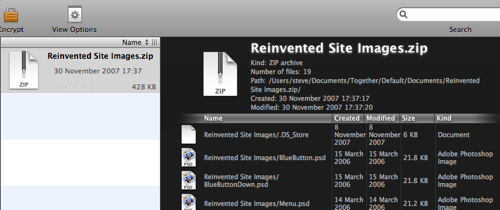
Together’s use of Quick Look previews are really handy, allowing you to see preview documents you wouldn’t normally be able to see without opening another application or using the Finder.

As you may know, any delevoper can create a Quick Look generator for their file format, or in the case of this one, for a generic format not covered by Leopard’s built-in generators.

A developer, known as xdd, and a designer, Taiyo, created a Quick Look generator for ZIP files, which will also work in Together.

together_zipfiles

This is the great thing about Together now – any file you can preview with Quick Look, you can also view in Together. I think it is the only non-Apple app to show previews in its own interface right now.

Together Tip: Watched Folders

November 28th, 2007 by Steve Harris

Note: The ability to automatically import files added to Together’s library folders was added in Together 2.1 – See Together 2.1 – New Ways to Import for more information.

I’ve had a few requests for watched folders in Together, the idea being that you can save a file in a folder and it is automatically imported into Together.

This approach will also work well for scanned documents and the good news is you don’t have to wait for me to clear my email deluge and get back to some development, you can do this with a little Automator. Here’s how:

Any file opened in Together will automatically be added to the library, so all you need is a simple Automator workflow, with one action in it, like this:

Open in Together Automator action

Here’s one you can download: OpenInTogether.zip (26KB)

To use it:

  • Uncompress the file and open it in Automator.
  • Choose File > Save As Plug-in from the menu.
  • From the “Plug-in for” pop-up choose “Folder Actions”
  • From the “Attached to Folder” pop-up, choose the folder to watch.
  • Click Save.
Saving automator action as a plug-in

After that, any files saved or moved into that watched folder will then be imported into Together.

Give Good Food to your Mac

November 27th, 2007 by Steve Harris

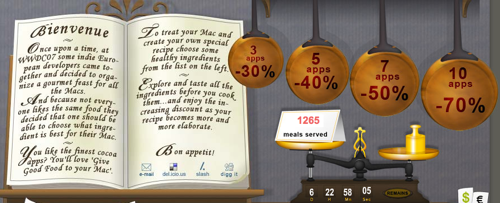
A group of European Mac developers have teamed up to bring Mac users a tasty new experience called Give Good Food to your Mac.

Give Good Food to your Mac logo

Running from today until December 8, Mac users can download and taste more than 25 great Mac applications and enjoy discounts ranging from 30% to 70%.

As this is haute cuisine, you can choose the exact ingredients. The more apps you buy, the bigger the discount on the full price of the apps. So, buying 3 apps you can save 30%, 5 apps 40%, 7 apps 50%, up to the maximum discount of 70% on 10 or more applications.

This promotion includes a stunning collection of high-quality applications from Aquafadas, Belight, Boinx, Cheetah3D, Coladia, Creaceed, Equinux, Iospirit, Jumsoft, Kletel, MacRabbit, Objective Decision, Ovolab, Pixelmator, ProjectWizards, Realmac Software, Softpress and your very own Reinvented Software.

The kitchen will remain open until the 8th of December, and on that note I’d better sign off before cooking up (haha!) any more food-related puns.

Bon appetite!

(Sorry)

Together 2.0 – User Interface

November 24th, 2007 by Steve Harris

This is the last in a series of posts highlighting some of the new features and improvements in Together 2.0, formerly known as KIT.

One of the most rewarding things about developing KIT is the number of compliments it received for its simplicity. When I first designed it, many apps of its kind were weighed down with interfaces full of clutter. I wanted the antithesis of that.

If you are a KIT user that hasn’t been able to use Together yet, with everything written so far you could worry that KIT’s simplicity will be lost. However, it has been my goal from the outset to maintain the simplicity while improving the overall experience. KIT users will find Together looks brand new yet reassuringly familiar.

Very little has been added to the interface. The toolbar now includes an Encrypt button, while the Info button has moved to the status bar at the bottom of the window. The status bar contains two new controls. On the left, is a control to switch between the groups outline and the new tag browser. And on the right…

Portrait View

Most screens on today’s Macs use a widescreen format. To make the most of this, Together now has a portrait preview mode. In my testing, I found both portrait and landscape previews to have their uses, so you can switch between them easily. Here’s how the portrait preview looks (click for a bigger version):

Together Portrait View

In portrait view, the file list shows thumbnail icons with all the information alongside. The traditional columns don’t work well in portrait mode for obvious reasons. This way you can see about the same number of items and information about them as the landscape preview. Together uses Leopard’s Quick Look technology to generate thumbnails for most documents.

To make the most of the space in this mode, the Info view appears below the preview and each section gets its own tab. With the Info button now located in the bottom right, it’s more convenient to show or hide the Info view as needed. The thumbnail format ensures most information can be seen in the item list.

Tabs

As mentioned before, Together allows documents to be edited in the main window, and can edit file formats other than its own notes. Together uses a tabbed interface for editing multiple documents. This keeps things uncluttered and removes any confusion between documents open in Together and in other applications.

Of course, you can still edit documents in their original applications and there are preferences and modifier keys that can be used to determine what happens when items are double-clicked.

Shelf

KIT had a number of ways to import data from other applications, but each had some sort of drawback. Dragging to the groups list gave the best results, but the window had to be visible. The Services menu is buried and its nature imposes restrictions on the types of data it could properly handle, as did dragging to the Dock icon.

In Together, the answer is the Shelf, which appears as a tab on the side of the screen. Drag files or data here and a window will slide out with a list of groups and folders that can accept new items. Once the drag ends, the window slides back. However, unlike anything you have seen before, the Shelf has a few tricks up its sleeve.

Together's Shelf

Click on the tab to open the window and you’ll see groups and a search box. In this mode, the Shelf acts as a global browser for your library where you can browse groups, drag files to other applications and search. Files can also be opened in their applications or in Together, and you can also drag URLs, text or anything else to the Shelf, just as in Together’s main window.

The Shelf also has a Quick Note view. Here you can quickly enter a note without leaving the current application. The Shelf can also be opened in either mode using hot keys that work both within the app any in other application. The Shelf can reside at the top, middle or bottom of either side of the screen.

That’s It

That’s all for now. I originally wrote these posts for the run-up to releasing Together. My aim was partly to show off the app but also to answer some questions in advance, in the hope it would save me some support emails! 😀 However, events took over and I decided to save them until after the release. I’ve received some good feedback on these, so I’ll aim to post more tips in the future. Thanks for reading.