Ever heard the expression “lighting someone else’s flame doesn’t diminish your own” (or something like that)? I’ve been having a conversation with Allison Sheridan from NosillaCast about this. Jonathan from the Mac Tips Daily Podcast told Allison to check out Podcast Maker as an alternative to Feeder for creating her podcast. Allison said she would, but felt awkward since she was happy with Feeder and the support she had received from me.
Now, as it happened, Potion Factory‘s Andy Kim told me that this was on Allison’s show (even though I’m still subscribed to Allison’s podcast, I have a backlog, OK!). I often talk with Andy, we’re good friends. I met both Andy and Jin at the Podcast Expo. Coincidentally, Allison wrote to me the very same day with a support question, so I mentioned in my reply that I had heard the show and told her exactly what I thought of Podcast Maker.
I think it’s brilliant and well worth checking out.
Feeder and Podcast Maker are very different products that happen to do similar things. The clues are in the names: Podcast Maker is dedicated to (surprise!) making podcasts. Feeder does podcasting, but is also a generic RSS feed editor. Both applications have their unique features. Podcast Maker is probably easier to use thanks to its focus on doing one thing and doing it well. Feeder may be more flexible, because it’s designed for a variety of different uses.
Of the two applications’ overall capabilities I bet there isn’t much in it, but frankly I haven’t done a comprehensive feature comparison to find out. I give Feeder users what I think they need, whether that is something frequently requested or an idea of my own. I expect Andy and Jin work on the same basis. How you implement these things is what makes all the difference.
I believe there is more to Mac applications than ticking boxes. Of course, Mac users care that an application does what they need, but they also want something that appeals to them on an emotional level. I can’t tell you how many times I’ve bought an app because I like it more than its competitors, regardless of whether it has as many features.
Same with Macs. I’ve always liked iMacs and all-in-one Macs in general. Yes, a Power Mac would be faster, more upgradeable, I could get a bigger monitor and it could double as a cheese grater, but I don’t care. The iMac is cute, a brilliant design and does everything I need perfectly. Obviously not everyone thinks the same as me, or Apple wouldn’t need to make any other desktop Macs.
Anyway, I digress. A man of many tangents, me.
Allison wrote back and told me that, if it were her, she might worry that plugging another podcast could take listeners away. It’s a good point, I had never thought of it from a podcaster’s perspective. True, people don’t need to make a purchasing decision between one podcast and another, because they’re all freely available, but listeners only have a finite amount of listening time.
But think about it, many of the most successful podcasters promote other podcasts on a regular basis. You plug a podcast you enjoy and they can mention you in return. It’s not mandatory, but both of you can gain listeners as a result of that extra exposure. It’s social networking, like a trackback on a blog, but it’s also word of mouth – the greatest marketing tool in the world.
The real point is this: it’s not as if someone can’t search for tech podcasts just as easily as they can search for podcast-creation software. There are all sorts of things out there: costly all-in-one solutions, bundled iLife applications, freeware, shareware, online services, you name it. And there will be more. To pretend these things don’t exist is futile.
Competition is good because it raises standards (or should!) and increases overall exposure. By mentioning Podcast Maker on her show, Allison also mentioned Feeder. People will make up their own minds. As for developers, and this could apply to anyone, it’s often so much better to work together than apart – a personal favourite example being the work we did in trying to sort out the iTunes specification.
My inspiration in this regard is NetNewsWire‘s Brent Simmons. Never afraid to mention his competitors, put source code out there, discuss all sort of things and open up his applications’ functionality for others to use (see the NetNewsWire developers page), Brent sets an excellent example for all developers – and just look how popular NetNewsWire is!
Indie developers are not like supermarkets, selling the same stuff at different prices. Our products should set us apart in a number of ways or we’re not trying hard enough.
So, the moral of the story is to share the love! It will always be good for you. 😉
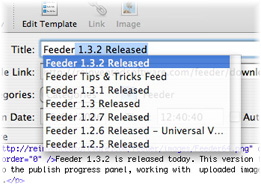 Feeder can autocomplete from other items in your feed, email addresses from Address Book and so on. You can enable or disable this feature in Feeder’s Editing preferences.
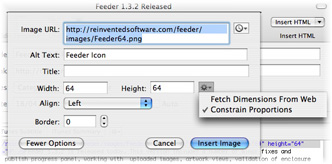 You can insert the HTML for images and links using the Image and Link buttons in the toolbar, when the cursor is in the Description field at the bottom of the window.
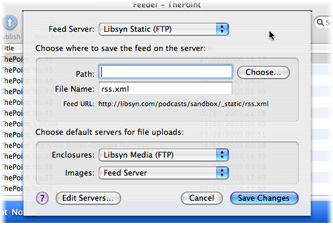 Feeder can upload different kinds of files to different servers when publishing your feed. To set default servers for different kinds of files, select the feed in the sidebar and choose File > Publish Settings from the menu and choose the servers to use for different kinds of files.