
Feeder provides comprehensive help files, which you can see by by choosing Help > Feeder Help from the main menu.
Questions & Answers
Upgrading to Feeder 4
I own an older version of Feeder, do I need to pay?
Feeder 4 is a major new version and a new license is required, but whether or how much you need to pay depends on when you purchased the earlier version:
- If you purchased Feeder 3 after the release of Feeder 3.7.2 on November 14, 2019, you qualify for a free upgrade whether or not you purchased directly from Reinvented Software or the Mac App Store.
- If you purchased Feeder 3 before November 14, 2019, you qualify for a half-price discount of $24.99.
- There are no upgrade discounts for versions of Feeder earlier than 3.0.
How can I upgrade to Feeder 4?
If you purchased Feeder 3 from the Mac App Store, make sure you have Feeder 3.7.5 installed and have opened it once. You can then only upgrade through Feeder 4 from this site.
When Feeder 4 launches it'll show an alert about the trial period, click Upgrade and follow the instructions. If you do not see an Upgrade button, please get in touch.
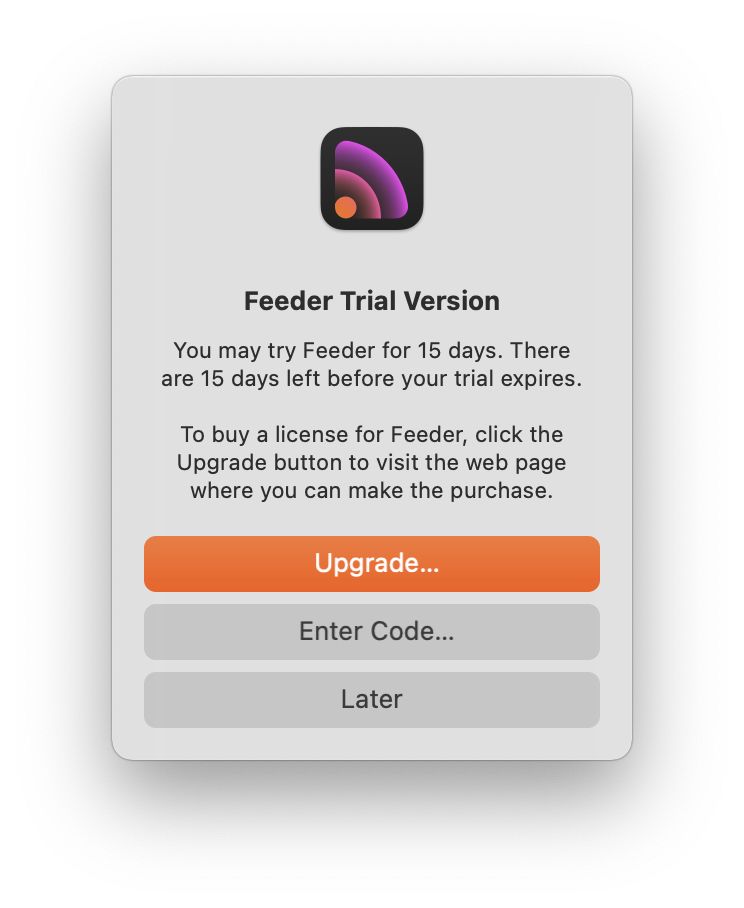
If you purchased Feeder 3 directly from Reinvented Software, you can either upgrade by clicking the Upgrade button you see in the trial version, or through the Reinvented Software store:
- Go to the Reinvented Software Store page for Feeder 4.
- From the License pop-up choose Upgrade and click Continue.
- In the Registration Code field, enter your Feeder 3 registration code and click Continue.
You will now be shown whether you qualify for a free upgrade or shown the upgrade discount for the new version.
Why doesn't Feeder accept my registration code?
Make sure the code is for the correct version of Feeder. If you purchased the code for a version earlier than 4.0, you can either download that version again from the bottom of the Feeder downloads page or get a new code for Feeder 4. See I own an older version of Feeder, do I need to pay? for more information.
Codes that have been refunded will not work. If you are sure the code was purchased for Feeder 4 and are still having problems, please get in touch.
Publishing
I’ve published by feed, why don’t I see updates on Apple Podcasts?
Most changes to Apple Podcasts appear within a few hours. You may be able to force your feed to refresh, see the RSS Feed Refresh topic in Apple Podcasts troubleshooting documentation for more information.
Can I use Feeder to offer Apple Podcasts subscriptions?
Apple provides two ways to offer alternative versions of episodes without subscribers seeing the freely available versions as duplicates. Feeder supports both these methods.
Matching Type, Season and Episode Numbers
If your podcast is a Serial or an Episodic podcast that includes Season and Episode Number tags, you will not need to do anything different in Feeder, apart from make sure the numbers match the episode in Podcasts Connect.
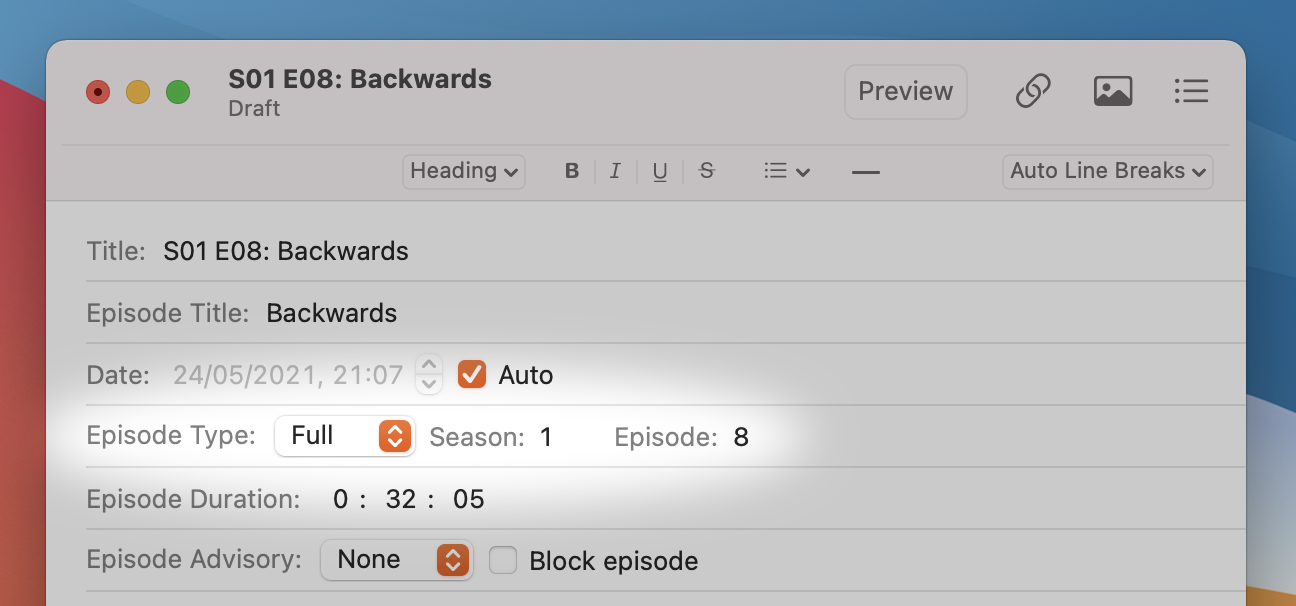
Serial podcasts show the Episode Type / Season / Number fields by default. If you want to use these for your Episodic podcast, you can show the fields:
- While editing an item, choose Editor > Edit Template from the menu
- Scroll down to the Apple Podcasts section
- Click the checkbox next to Episode Type
- Click Save
Using the Apple Podcasts Episode ID as the GUID
If your podcast is not a Serial or Episodic podcast that uses season and episode numbers, you can set the episode’s GUID to match the Apple Podcasts Episode ID, which you can get from Podcasts Connect after uploading your subscriber audio there.
In Feeder, the GUID is called the Unique ID. Feeder automatically generates a Unique ID for each item in the feed. The Unique ID field is normally hidden; to show it, while editing an item:
- Choose Editor > Unique ID > Show Unique ID from the menu
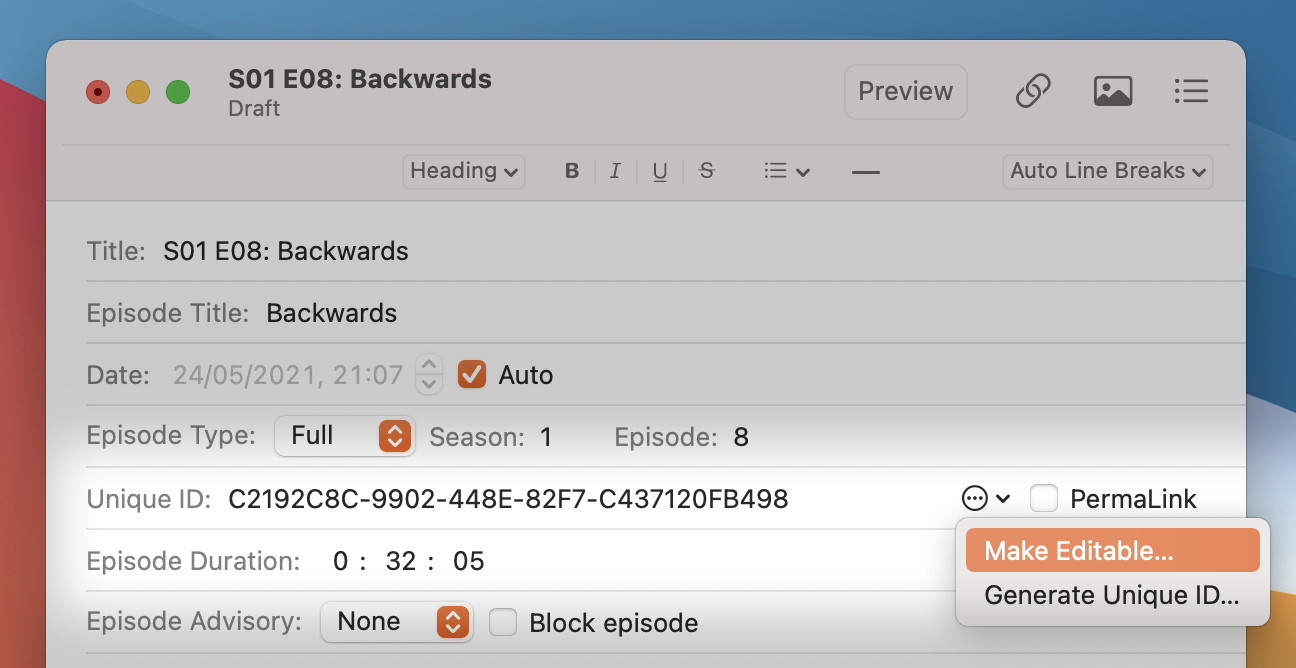
The Unique ID is not editable by default, because if it’s changed for an item that has already been published, your episode will appear as a duplicate. To edit the Unique ID:
- Click the action button next to the Unique ID field
- Choose Make Editable from the menu shown
If the item has already been published, Feeder will show a warning.
Feeder shows the message “Cannot cd to directory”, ”Server denied you to change to the given directory” or “No such file” when publishing.
Usually this indicates either the publishing settings are incorrect for this feed. To fix the problem:
- Click the Publish button
- Click the Settings button (you won't need to do this if publishing has not yet been set up)
- Clear everything out of the Site Folder field
- Click the Choose button next to the Site Folder field
- Choose the folder where your web site's files are kept — this is usually called “public_html”, “htdocs”, “yourdomain.com” or similar, or it may be the first folder you see, in which case the Site Folder can remain empty
- Clear everything out of the Folder field
- Click the Choose button next to it
- Choose the folder where you want to store your feed, if any
- Click Continue, then click Publish.
If you need any more help, please get in touch.
How can I track subscribers to my feed?
To track people who've subscribed to your feed, you will need to use a third-party service. Here are some:
Feeder provides support for adding redirects to URLs if necessary, including specific support for Podtrac redirects:
- Select the feed in the sidebar
- Choose View > Settings from the menu
- If you're using Podtrac, then under the Publishing heading, select Enable Podtrac redirects
- For everything else, select Redirect enclosure URLs and enter the redirect URL in the field below
Apple also provides statistics for podcasts listed in its apps on Podcasts Connect.
Email Support
To send a support request, choose Help > Feeder Support from the menu, and click Get In Touch. This will create an email with Feeder's log files attached, which are useful for diagnosing all kinds of problems.
If you cannot do that, you can also send questions to
Generally you should expect a reply to a support request within one or two working days. If you do not, make sure to check your junk folders.