Scrappy 1.2
Scrappy 1.2 is now available. This version updates the user interface for Liquid Glass on macOS 27 Golden Gate, as well as integrates with Apple Intelligence on macOS 27, iOS 27 and iPadOS 27. Scrappy 1.2 also further bolsters its Shortcuts support, and improves management of iCloud downloads.
macOS 27 Golden Gate
Scrappy 1.2 is updated for Liquid Glass on macOS 27. Thumbnails and selected list rows have tighter corners to match the reduced window corners, web link articles no longer have rounded corners, and icons will only appear in menus when relevant. The appearance of date pickers in the smart list editor has also been improved.
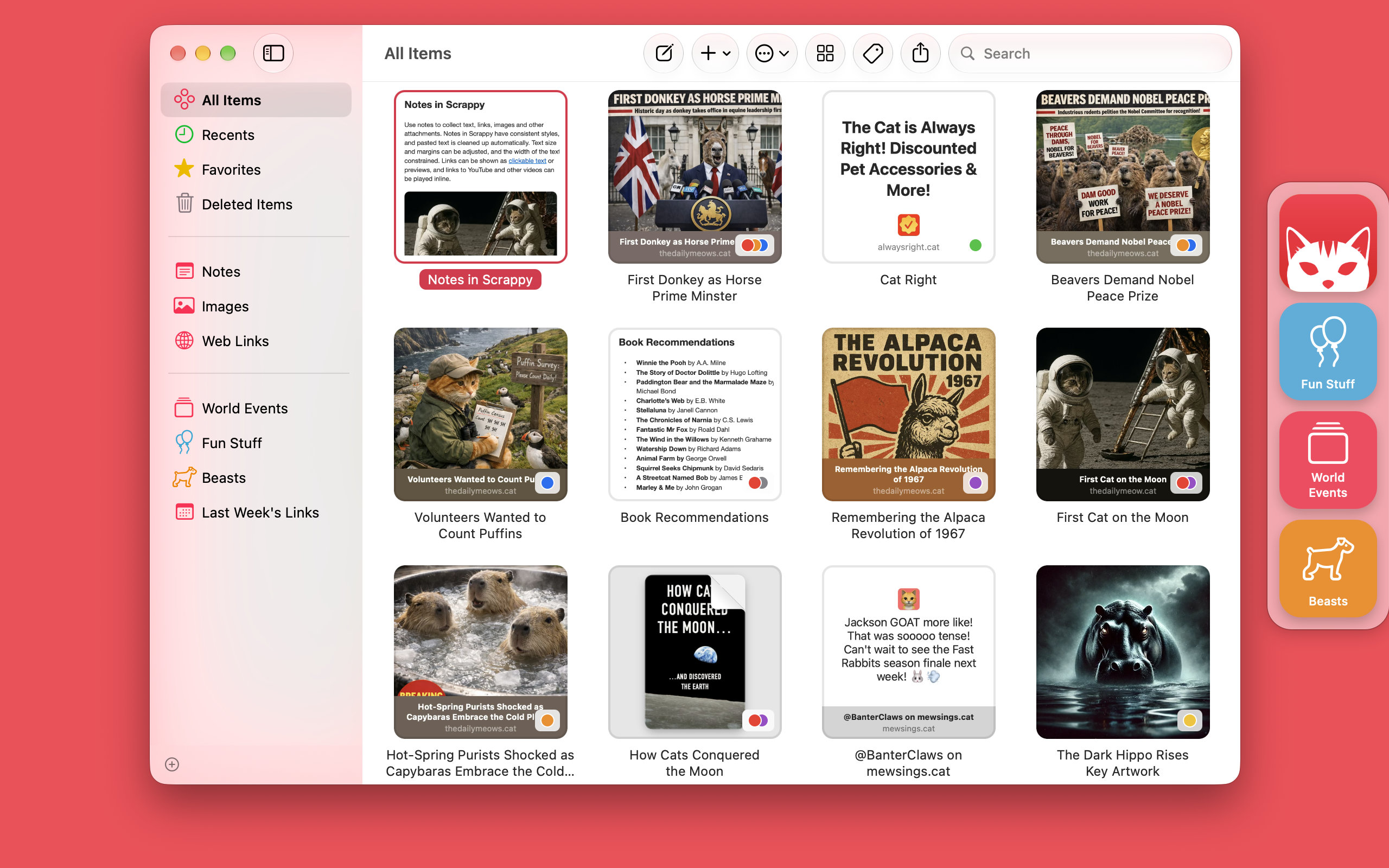
Scrappy automatically benefits from other macOS 27 changes such as sharper app icons, improved toolbar buttons, and the restoration of the separated sidebar, accent colors in the sidebar, and toolbar backgrounds.
These changes bring Scrappy much closer to how it was originally designed for macOS Sequoia and earlier, to the extent that if you skipped macOS 26, it may just appear a little refreshed. For everyone else, Scrappy for Mac is now the tight and neat little app it was always meant to be.
iOS 27 and iPadOS 27
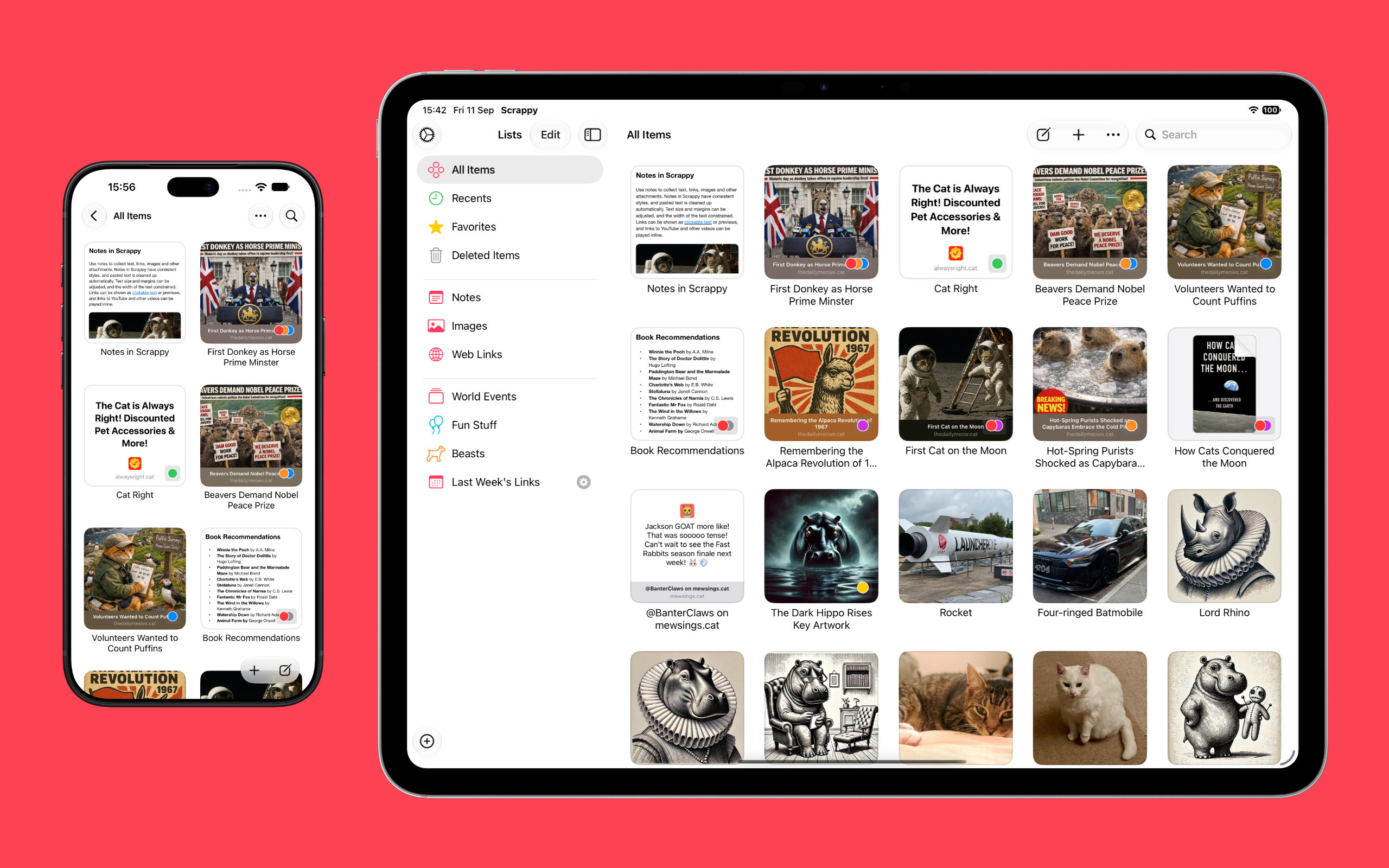
Scrappy automatically benefits from most of the Liquid Glass refinements on iOS 27 and iPadOS 27, but additional work has been done to ensure icons only appear in the main menu when relevant on iPad.
Shortcuts & Apple Intelligence
Scrappy now integrates with Apple Intelligence on macOS, iOS and iPadOS 27, allowing Siri to initiate an in-app search and open items in Scrappy. Scrappy 1.1 laid the groundwork for this integration with its Spotlight indexing and array of Shortcuts actions.
When using “Find Items” you can now filter by lists and dates too, and sort the results by various dates too. Finally there are two more actions for working with lists: “Move List” and “Change List Icon”.
Space Saver
When Scrappy is using iCloud and “Keep items downloaded” is not selected, Scrappy will now remove downloads for items that have not been viewed for 30 days, excluding favorite items.
Notes
Paste Markdown as formatted text in notes by choosing “Paste as Markdown” from the Edit menu on Mac and the text editing menu on iPad and iPhone. This is useful when, for example, pasting text from sources such as AI agents that generate Markdown rather than rich text.
Availability
Scrappy is available for Mac, iPhone and iPad from the App Store, with a choice of Mac, mobile, and universal subscriptions. Existing users will get this update automatically. See the release notes for Mac, and for iPhone and iPad for a full list of changes.
If you’re enjoying Scrappy, please consider rating it and maybe even leaving a review on the App Store—these things really help apps get noticed. Thanks!