Scrappy 1.1 is now available. This version adds Shortcuts actions, Spotlight integration, tag names in the Thumbnails View, bookmarks import on iPhone and iPad, Go To List on Mac, and other improvements.
Tag Names in Thumbnails View
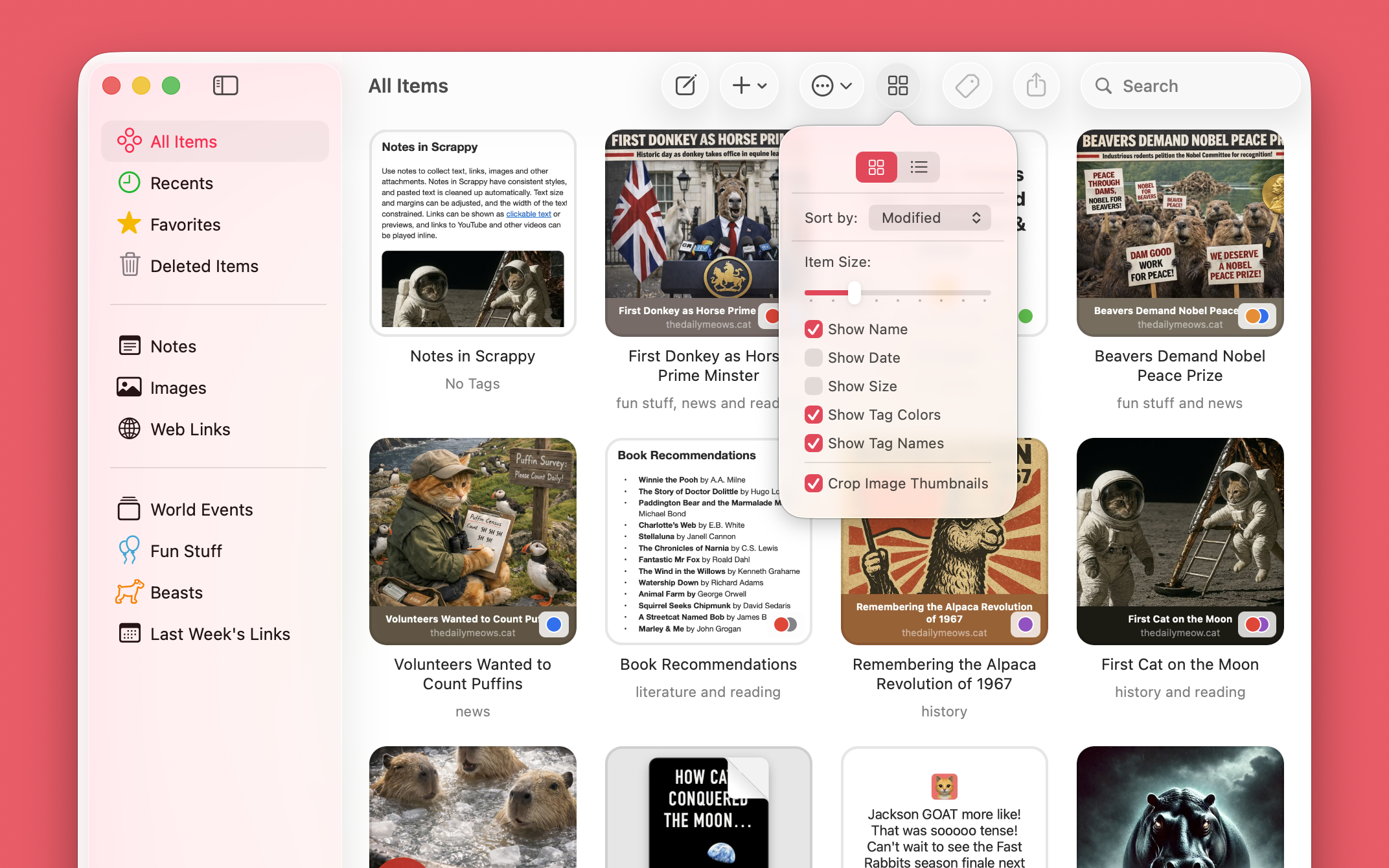
It’s now possible to see tag names below the thumbnails rather than just tag colors on the thumbnail itself. Enable this in View Options.
Spotlight
Scrappy is now integrated with Spotlight on Mac, iPad, and iPhone allowing you to see items from Scrappy in Spotlight’s results.
Shortcuts
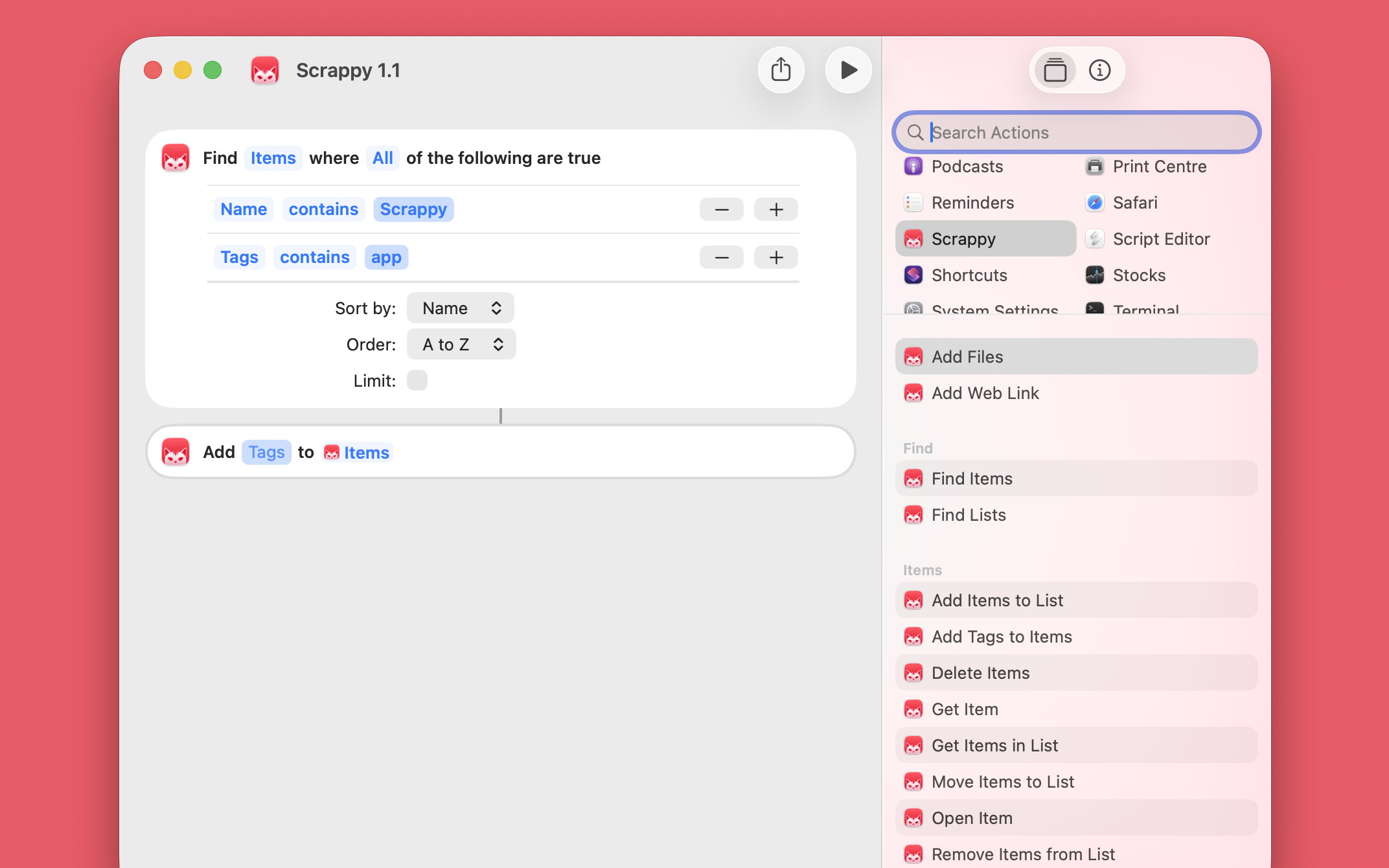
Scrappy already included shortcut actions for adding text, links and files, and appending those things to notes. Version 1.1 adds 18 actions for working with items, tags and lists, allowing many more tasks to be automated.
These are the new actions for lists:
Add List
Delete List
Find Lists
Get List
Open List
Rename List
And these are the new actions for items:
Add Items to List
Move Items to List
Remove Items from List
Delete Items
Add Tags to Items
Remove Tags from Items
Find Items
Get Item
Get Items in List
Get Text Content
Rename Item
Open Item
Bookmarks HTML Import
Many bookmarking services can export an HTML file of your links organized into folders, and some of those also include dates and tags. On Mac, Scrappy could already import and export bookmarks HTML files, preserving the hierarchy, dates and tags, and that’s now available on iPhone and iPad too.
To import, choose a single bookmarks HTML file, and Scrappy will ask whether to import the bookmarks rather than the file itself. Exporting the “Web Links” list will offer to export the links as individual web location files or a bookmarks HTML file.
Go To List
Scrappy for Mac can now find and open a particular list. Choose Go > Go to List from the menu and start typing.
More Search Options on iPhone and iPad
On iPad and iPhone, it’s now possible to tap on chosen search suggestions to modify them (you could already do this on Mac). The options shown will depend on the suggestion, but this allows you to change how dates are matched and negate certain terms, for example.
Availability
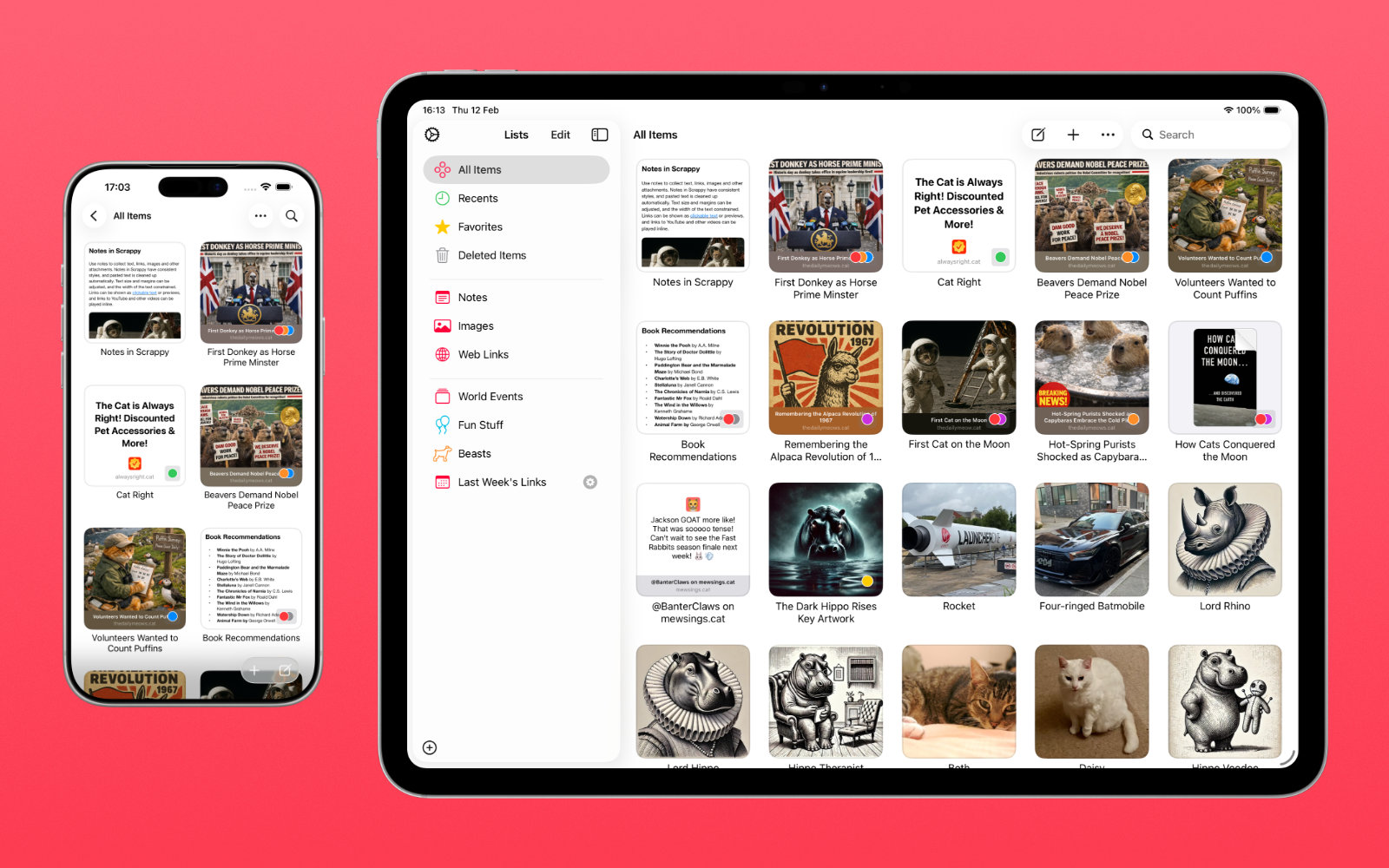
Scrappy is available for Mac, iPhone and iPad from the App Store, with a choice of Mac, mobile, and universal subscriptions. Existing users will get this update automatically. See the release notes for Mac, and for iPhone and iPad for a full list of changes.
If you’re enjoying Scrappy, please consider rating it and maybe even leaving a review on the App Store—these things really help apps get noticed. Thanks!
Keep It 2.8 is available today. This version includes improvements for scanning documents, linking to items and lists, the items list, and editing notes and text files in windows on iPadOS 26, along with new and improved Shortcuts actions.
Document Scanning
The default name for scanned documents now includes the date and time.
On Mac when importing from a scanner, there is now an option to show the Import View when scanning a document to set a name, tags and choose a location before the scan is added to Keep It’s library.
On iPad and iPhone, when scanning with the document camera, the resulting scanned PDFs now always have OCR performed on them, when available.
Linking to Items and Lists
Linking to items and lists in notes, rich text documents and Markdown files is now much simpler — start typing the name of any list or item in Keep It’s library, and choose from the suggestions shown below the link field.
When inserting links to items into a Markdown document, it’s also possible to insert a relative path to the item; links to image items in Keep It are always inserted that way.
Shortcuts
There is a new “Append Link” action for appending links to notes and other editable text files. This was already possible with the “Add Web Link” action, but as that is primarily for saving standalone web links, the feature got missed.
The “Find Items” shortcut now has a “Match Name Exactly” option for matching items by their exact name, rather than a portion of it.
And More
There are a various refinements for iOS 26 and iPadOS 26, including support for constraining the width of notes and editable text files in windows on iPadOS 26, which previously only applied to full-screen iPad apps.
Across all versions, name generation for notes and web links has been improved, particularly in non-Latin languages, and Keep It can now show thumbnails for PDFs attached to notes in the items list.
Keep It 2.8 requires macOS 14 Sonoma or later, or iOS 17 / iPadOS 17 and later.
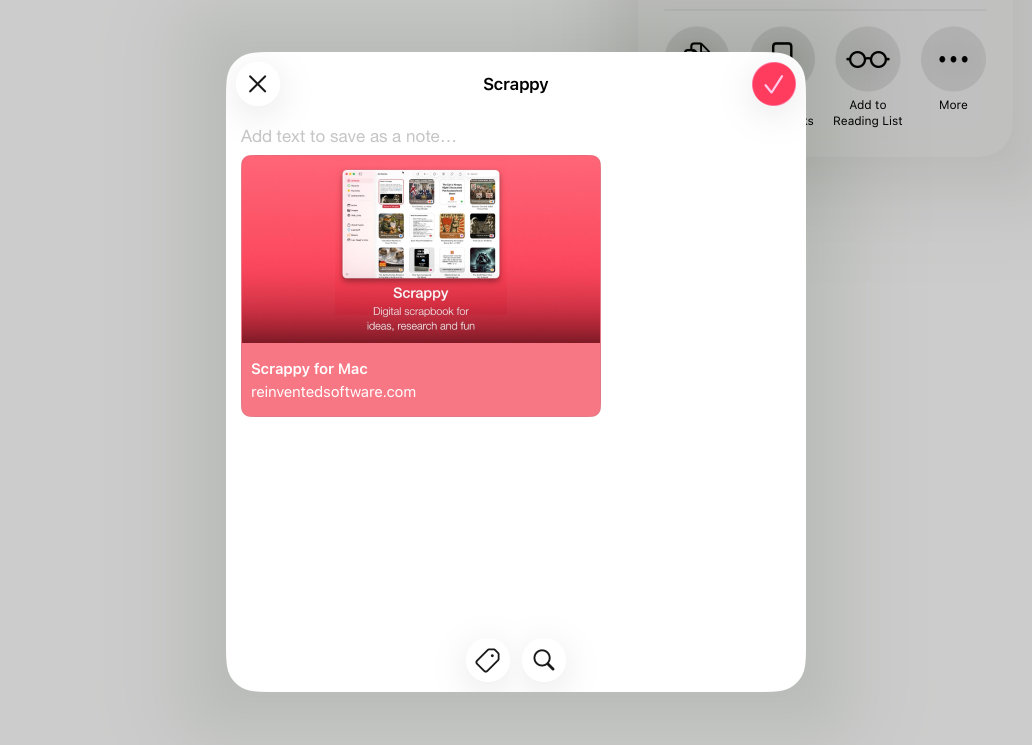
Scrappy is a digital scrapbook for ideas, research, and fun. Use Scrappy to save text, links, and images—and find them again.
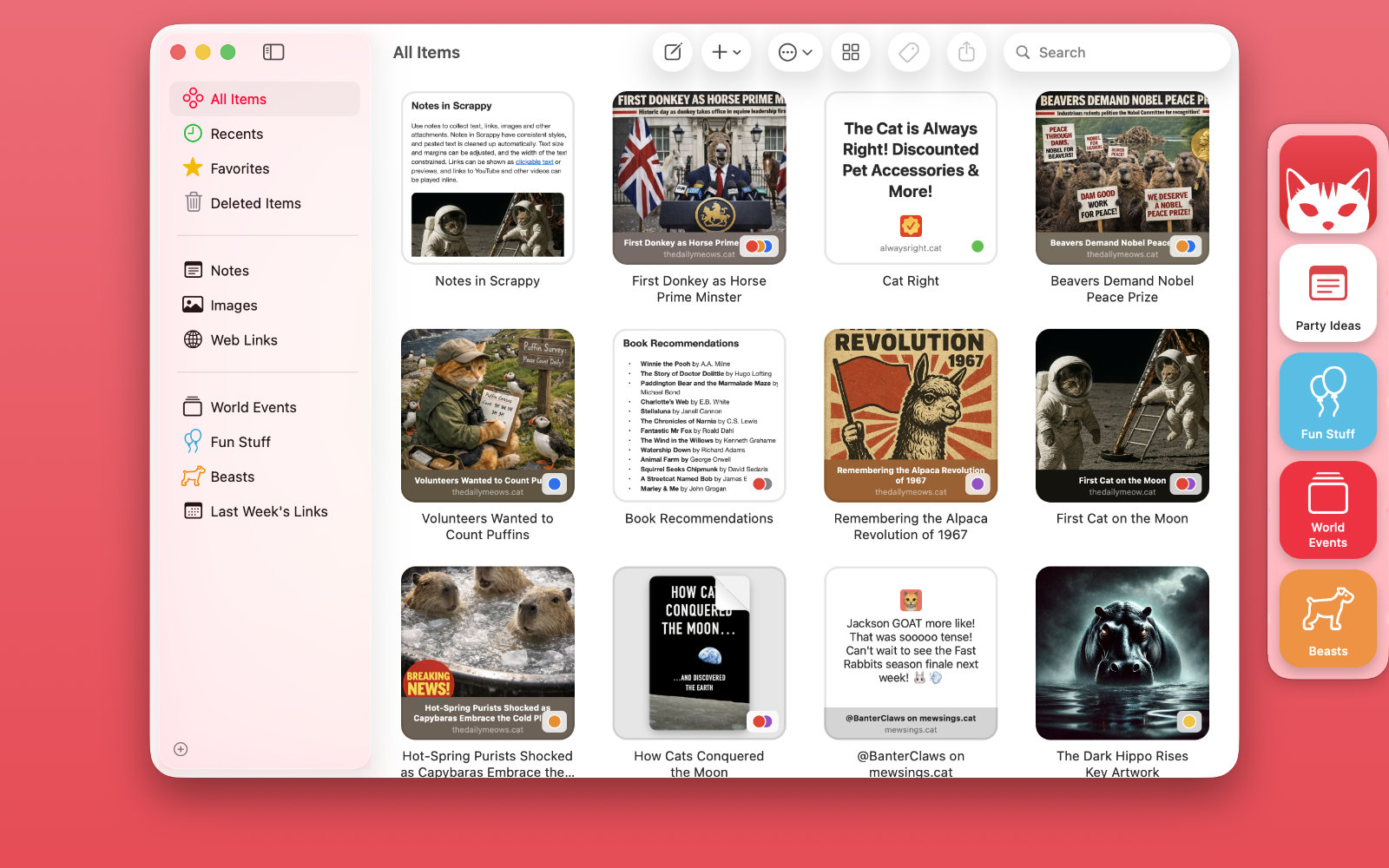
Scrappy shows everything as large thumbnails that open to fill the view—there you can swipe through items individually. Scrappy’s sidebar shows favourites, recent items, and categories for things like notes, images, web links to help you find what you need.
You can also create your own lists, including smart lists, with customizable icons and colors, and items can have searchable, and optionally color-coded tags too.
In addition to notes, web links and images, Scrappy can play movie and audio files, has built-in support for previewing PDFs and text files, and can show other files with Quick Look.
Scrappy is designed for saving things in the moment.
On Mac drag text, links, images, screenshots, or just about anything to the Drop Shelf on the side of the screen. Notes and lists can be dragged from Scrappy to the Drop Shelf to become destinations. You can also drag to Scrappy’s icon in the Dock, or use the “Add to Scrappy” service to add text, links and files from most apps. Scrappy also provides a Safari extension to save links with a single click.
Scrappy’s Share extension can save text, links, images and files from other apps on Mac, iPad and iPhone. Add photos and videos directly to Scrappy from your photos library or using the camera on iPhone or iPad.
If you’ve already copied something, click and hold on Scrappy’s icon in the Dock on Mac, or on iPad and iPhone, and choose New from Clipboard.
Notes
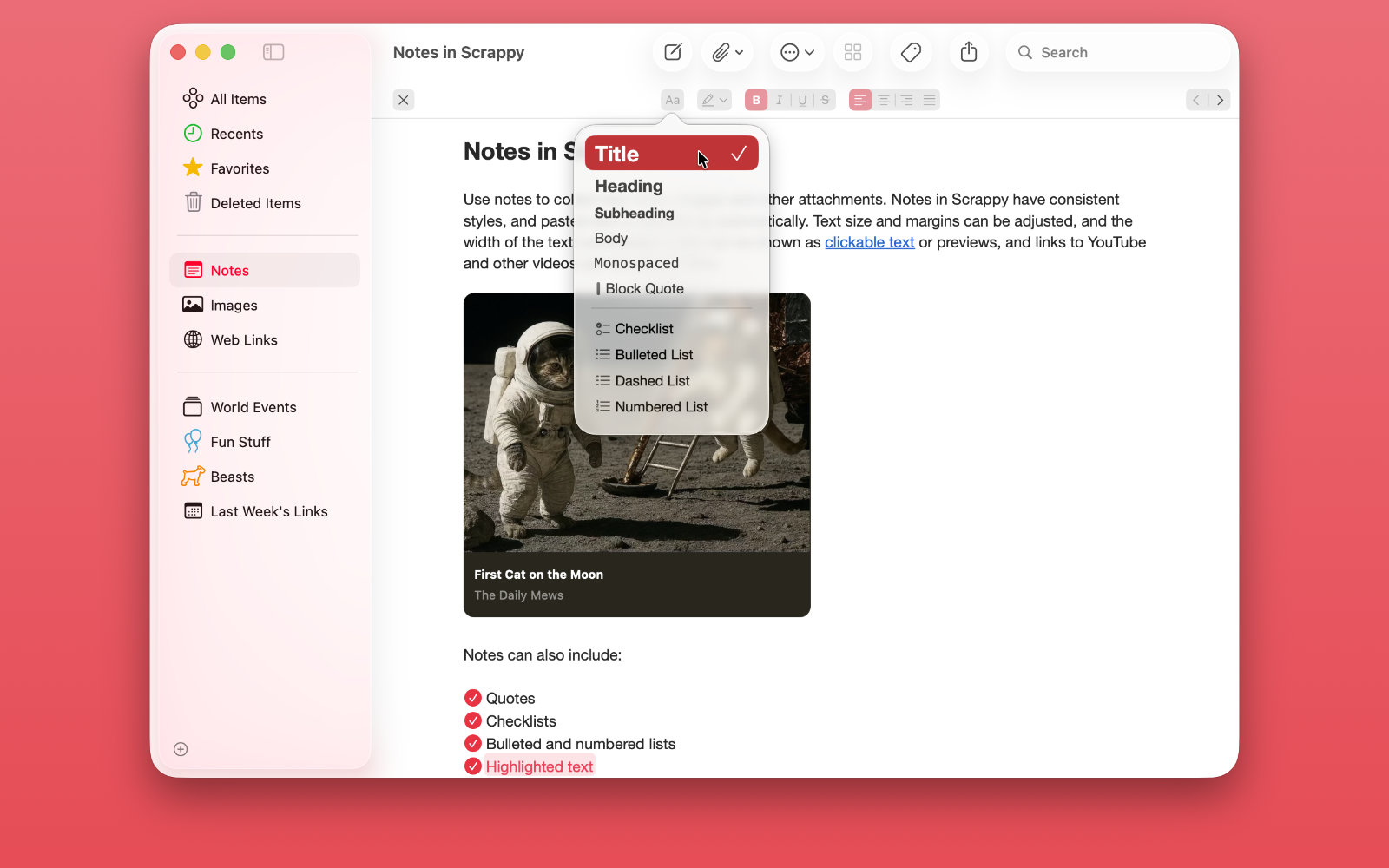
Use notes to collect text, links, images and other attachments. Notes in Scrappy have consistent styles, and pasted text is cleaned up automatically. Links can be shown as clickable text or previews, and links to YouTube and other videos can be played inline.
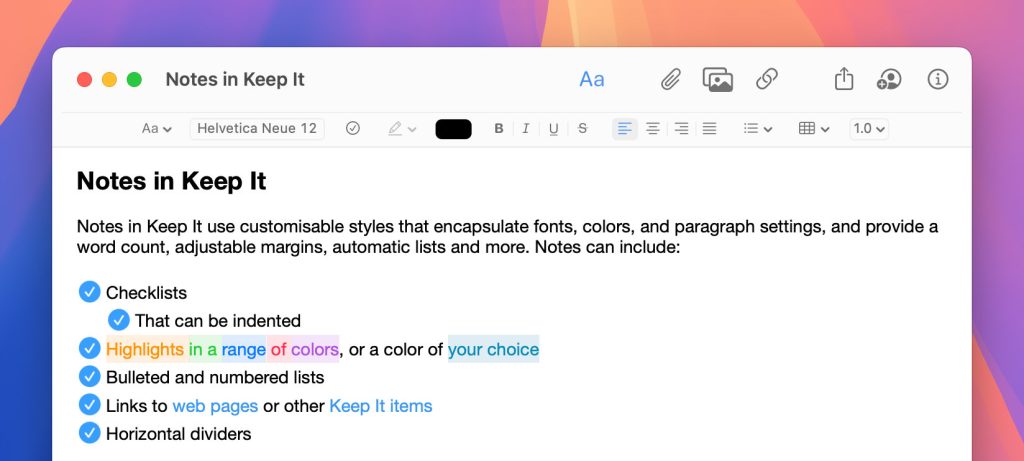
Notes can also include quotes, checklists, bulleted and numbered lists, highlighted text, horizontal dividers, and links to other items. Notes can be locked to protect sensitive information in an encrypted format using a password only you know. These can be viewed with Touch ID or Face ID, when available.
Web Links
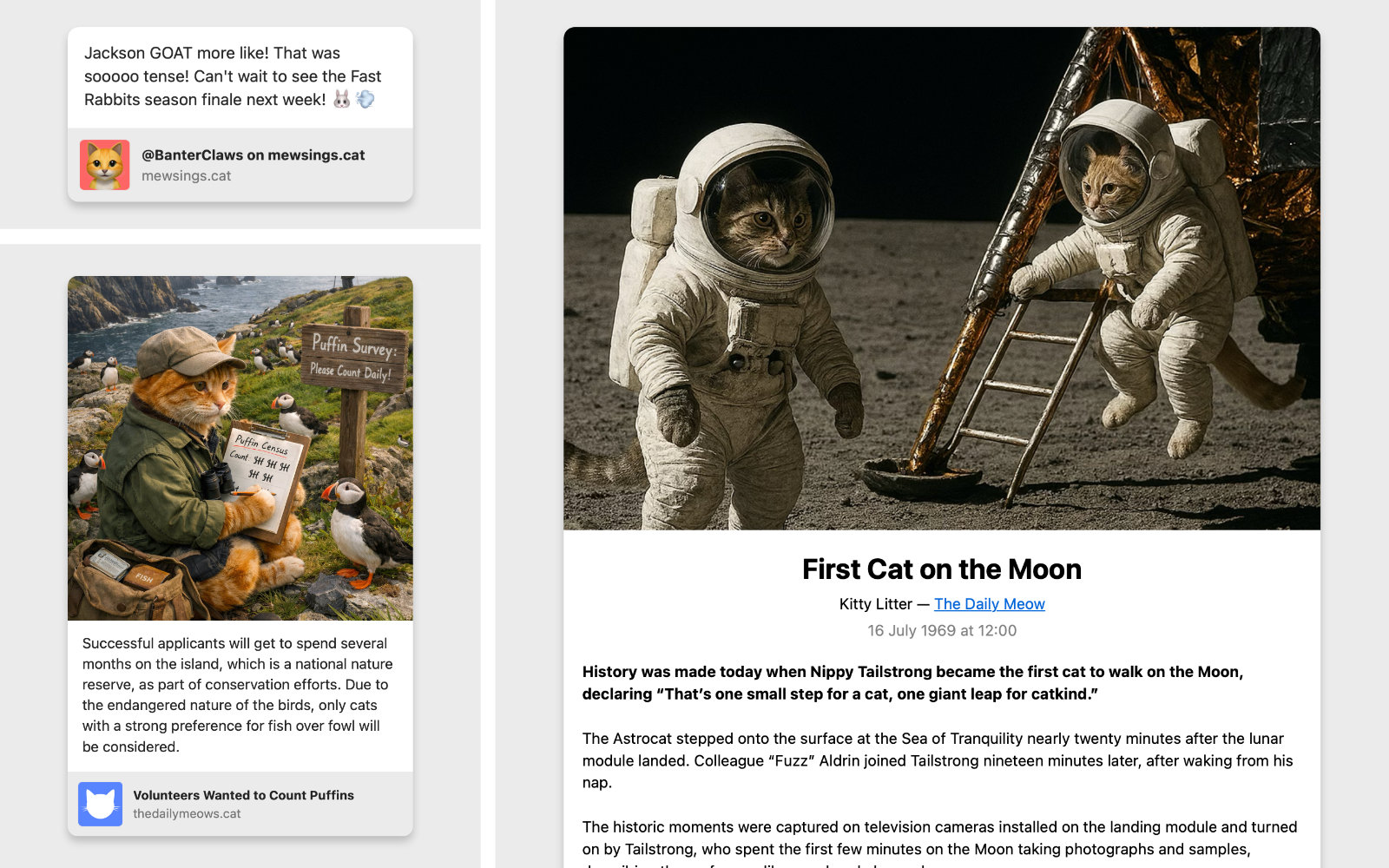
When you save a web link to Scrappy, what’s shown adapts to the content. Articles resemble reader mode in web browsers with a featured image and cleaned-up text, while other links, such as YouTube links and social media posts, will appear as cards with a summary and image or playable video.
When viewing web links, Scrappy lets you remove images and portions of text that you don’t need, edit information about the links, and can save the original page for offline viewing too, if required. All links can be opened in your default browser or other app of your choice.
Scrappy also supports links with highlights, showing only that text, and when you view the original page either in the app or a browser, the highlighted text will be scrolled into view.
When you save a link to something that can’t be viewed as a web page or represented as a link, Scrappy will download the file and store its source URL. If you use Safari, Scrappy can also save the source URL for text and images added via drag and drop, the clipboard, or (on Mac) the Services menu.
Images
Scrappy is the perfect destination for things like screenshots and those images we work with every day, many of which might otherwise remain buried in messages, or cluttering up your Desktop, Downloads folder, or Photos library.
When searching, Scrappy can find images not only by the text and prominent features they contain (animals, vehicles, plants, etc), but also what they represent, such as screenshots, illustrations, or receipts.
Search
Once you’ve got things into Scrappy, you’ll want to find them again. Scrappy finds items by their name, date, kind, source, tags and content, including the text recognition and image classification features mentioned above. Search suggestions appear as you type, and you can combine these to drill down to what you need. Found text is highlighted as you swipe through results.
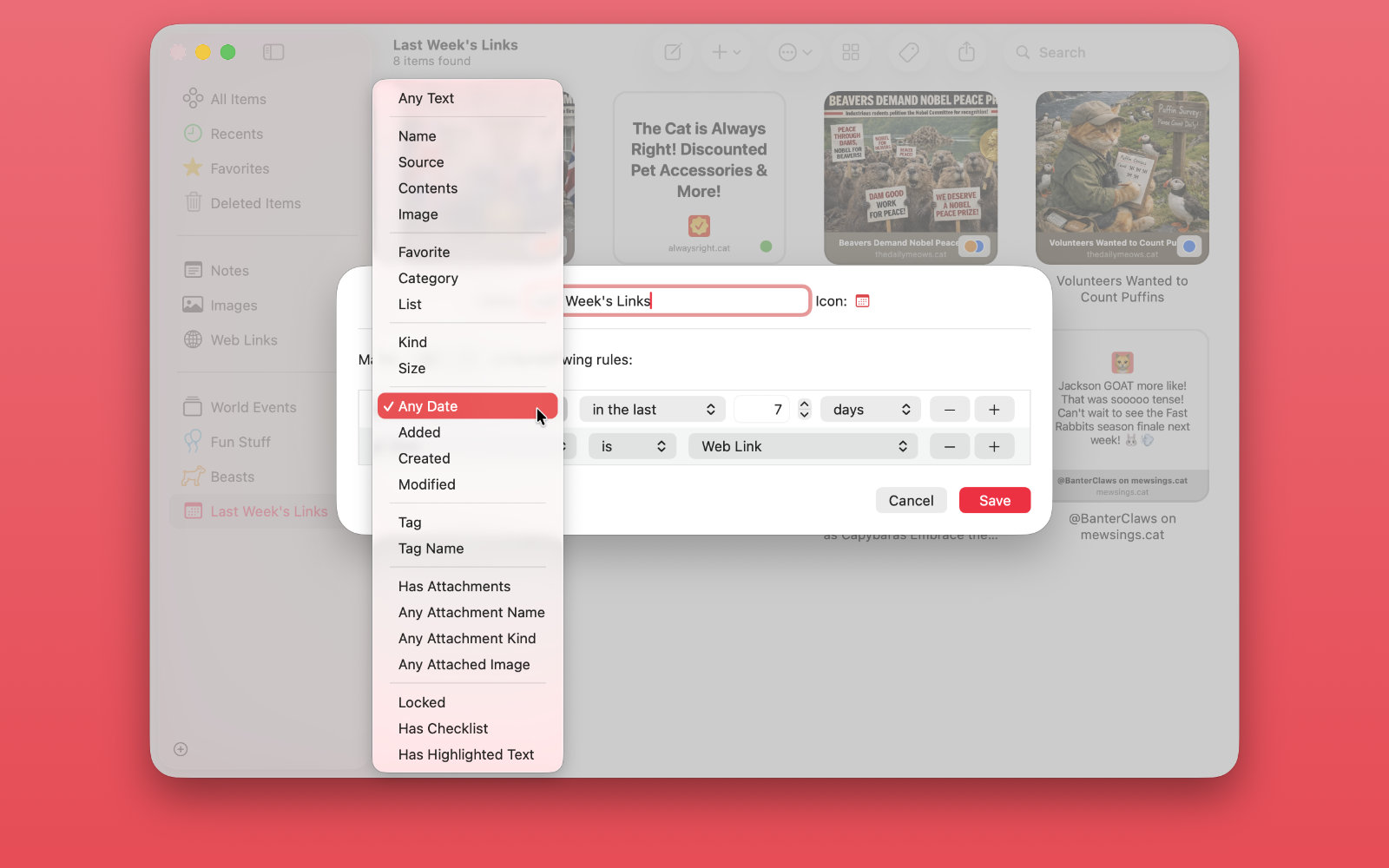
Scrappy also lets you create Smart Lists, either from the current search or from scratch, to match items against a set of rules.
Getting Stuff Out
It’s no good putting things in an app if you can’t get them back out again. All the items you add to Scrappy can be dragged out, and you can export any list, item or the entire library as files, folders and tags in standard formats that any good app can understand.
Availability
Scrappy requires macOS 15.6 Sequoia or iOS / iPadOS 18.6 or later.
Scrappy offers a 14-day free trial, and is then $19.99/year on the Mac App Store and $14.99/year on the iOS App Store, or you can subscribe to both for $29.99/year.
Scrappy and Keep It
Keep It is a notebook and document organizer that fully integrates with the Finder and Files app. Use Keep It to organize files, write notes with a full suite of formatting features, create and edit text files, scan documents, archive emails, and edit files in other apps.
Some of Scrappy’s ideas will be familiar to users of Keep It’s predecessor, Together, which ran from 2004 until 2017. Designed long before iPhone and iPad, iCloud and App Stores, various key Together features were impossible on iOS and iPadOS (which remained true until this decade), and a struggle in the more constrained world of Mac apps we know today. Instead, Keep It was built to meet demands for a notebook and document manager with effective feature parity across Mac, iPad and iPhone.
Keep It satisfies those needs far better than Together ever could, but when it comes to collecting information from a variety of sources, what’s essential for managing a document library is often irrelevant or gets in the way. For that you need something more visual, flexible and self-contained. Enter Scrappy, which can be used on its own, or to complement Keep It for things that don’t belong in your document library.
If you are a Keep It user who thinks Scrappy may be a better fit, Scrappy can import your Keep It library. Similarly, if you stuck with Together because Keep It’s focus on notes and documents wasn’t for you, Scrappy can import Together 3 libraries, but you must export them from Together first—make sure to do that before Apple discontinues support for Intel apps altogether.
Keep It 2.7 is updated to support Liquid Glass in macOS 27, iOS 27, and iPadOS 27. In addition, Keep It supports the main menu on iPad, support for actions in Spotlight on Mac, and all versions sport new app icons. Other changes include a redesigned Share extension on macOS, and various improvements for thumbnails, extracting item information, and iCloud.
Operating System Updates
Keep It now adopts Liquid Glass on macOS 26 Tahoe, iOS 26 and iPadOS 26. Sidebars and toolbar buttons now have a raised, rounded appearance, menus have icons, and the redesigned app icon can adapt to your appearance settings.
Actions have been rewritten to appear in Spotlight on macOS 26 Tahoe, and text-based actions can now handle rich text. On iPadOS 26, Keep It provides a main menu for the Stage Manager and window multitasking modes.
On iOS 26 and iPadOS 26, a search button is shown above the items list, and status information such as progress or the number of items has moved to the navigation bar at the top of the screen.
Other Changes
On macOS the Share extension has been redesigned to show more information and reduce visual clutter. There are efficiency improvements to iCloud, thumbnails, and extracting information from files, and improved reliability when checking changes to files. See the release notes for a full list of changes:
Keep It 2.6 is now available. This version includes improvements for highlights and image attachments in notes, table editing on Mac, inserting dates, saving web links, encrypting files, and importing/exporting bookmarks HTML files.
Notes & Editable Text Files
Highlights in notes and rich text documents now match the new standard style provided by Apple in macOS Sequoia and iOS 18, but in Keep It 2.6 this will apply to all versions of macOS and iOS.
In Keep It for Mac, you can now add and remove rows within a table in notes and rich text documents, rather than just at the end of the table.
Since Keep It 1.6, Keep It has provided a “Show Small Images” feature that constrains the display size of image attachments in specific notes. In version 2.6, the feature has been renamed to “Constrain Image Sizes”, and now offers a choice of four different sizes, along with the ability to apply this setting to all notes.
Keep It 2.6 can now insert dates in ISO 8601 format anywhere in Keep It that you can edit text on Mac, and in notes, rich text, plain text, and Markdown files on iPad and iPhone.
Web Links
Keep It can now show a featured image in Reader mode for web links and saved web pages, and can include a featured image in web links saved in a minimal format.
When importing a bookmarks HTML file, Keep It can optionally now use the added and modified dates exported by Firefox and Chrome (added date only), and Keep It includes these dates when exporting a bookmarks HTML file.
Encrypted Files
On Mac, Keep It now lets you authorise to view an encrypted file with a companion device such as Apple Watch. When exporting a list or library that contains encrypted items on Mac, Keep It now allows authorisation with either Touch ID or a companion device, if available.
In addition, Keep It now provides an “Always require password” option in its Advanced settings on Mac and Settings on iPhone to disable authorizing with Touch ID, Face ID, or a companion device when viewing or exporting encrypted files.
And More…
Keep It for Mac can now import an exported Keep It library, preserving not only folders, files and tags as before, but also bundles, labels, saved searches, and favorites. There are also improvements automatically naming notes and rich text files with attachments, Compact Mode on Mac, the items list, search suggestions, saved searches, and importing folders on iPad and iPhone. See the release notes for a full list of changes: